
Meta Muse Voice is the fastest way to talk to Muse instead of typing to it. Meta launched it on 5 November 2026 in the United States: tap one phone icon and you are in a live voice conversation, with an animated avatar that talks back in real time. You can interrupt it mid-sentence, change how it sounds, and choose whether you see its face at all.
Meta had previewed this at Connect 2026 on 23 September, and some US users saw voice chat appear from mid-October during a staged rollout — 5 November is the date Meta announced it for everyone in the US. Meta’s chief AI officer, Alexandr Wang, posted a demo call on X the same day, writing that “muse voice is out for everyone in the US!”
This guide covers exactly how to start, what each view does, how to change the voice and avatar, what Muse Voice can and cannot do, and the limits Meta has not explained yet. It is written from Meta’s 5 November 2026 announcement and launch-week coverage, because Muse Voice is US-only — it cannot be tested hands-on from Pakistan yet, and this guide does not pretend otherwise.
Quick answer: Muse Voice is live in the US from 5 November 2026. Open the Muse app, tap the phone icon in the top-right corner, and talk — Muse answers in real time with an expressive avatar. No setting to switch on first, no separate voice app.
At a glance
| Question | Answer |
|---|---|
| Launched | 5 November 2026 |
| Where | United States only, for now |
| Where to open it | Muse app on mobile, Muse on the web (muse.ai), Muse app for Mac |
| How to start | Tap the phone icon in the top-right corner |
| iPhone version | 14.3 or later (requires iOS 18) |
| Views | Voice only, avatar beside the chat, full-screen avatar |
| Voices | Hundreds to choose from, changeable any time |
| Can it see you? | No — it hears you only |
| In WhatsApp, Instagram or Facebook? | No — only inside the Muse app / muse.ai |
| AI glasses / Muse Charm wearable | Coming later, no date given |
What is Meta Muse Voice?
Muse is Meta’s personal AI agent. Muse Voice adds real-time voice to it, plus an expressive avatar — a generated face that speaks with synced lips, expressions and gestures. Two new models drive it: Muse Realtime Voice and Muse Realtime Avatar. Meta says they share one stream of speech tokens, so the spoken reply and the avatar’s video stay in lockstep.
In practice, that means three things. First, the reply arrives almost immediately — Meta’s research team puts it at about 870 milliseconds after you stop talking, rendered as 448-by-768 portrait video at 25 frames per second. Those are Meta’s own figures, not an independent measurement. Second, you can interrupt Muse mid-answer with a follow-up, the way you would cut in on a friend who is rambling. Third, the avatar reacts while you talk: it is a face for the voice, not a recording. Meta also says the avatar video carries an invisible Meta Video Seal watermark, which marks it as AI-generated.
One thing to understand early: this is a conversation, not a video call in the normal sense. Muse hears you, but it does not see you. No camera feed goes from you to Muse, even in full-screen avatar mode. Describe anything visual out loud instead of showing it.
Who can use Muse Voice?
Muse Voice is open to all US users of Muse. Three conditions apply, all from Meta:
- You need to be in the US. Voice launched in the US only. Meta has not given a date for Mexico, Canada, Japan, Singapore, Pakistan, or any other country. If you are outside the US, you will not see the voice feature yet — that is expected, not a bug. A separate guide on this site will cover the “not showing” fixes and the outside-US situation in detail.
- You need to be 18 or older. Muse is for people aged 18 and over.
- You need the Muse app or muse.ai. Voice lives in the standalone Muse experience — the Muse app for iPhone and Android, Muse on the web, and the Muse app for Mac. It does not work inside a WhatsApp chat with Muse, and it does not work inside Instagram or Facebook.
Note: Muse itself launched in Mexico on 5 November 2026, its fifth country after the US, Canada, Japan and Singapore — but no voice date has been given for Mexico or any country outside the US. Meta asks for a payment card when you sign up, even if you stay on the free tier. That is a sign-up requirement, not a charge for voice itself.
How to start a voice chat with Muse: step by step
Meta gives exactly one starting instruction, and it is short. The steps below use only that instruction plus the per-device details launch-week coverage describes. There is no separate video button anywhere in what Meta has published.
- Open Muse. Install or open the Muse app from the App Store or Google Play, open muse.ai in a browser, or use the Mac app. Sign in and finish setup.
- Allow the microphone. When asked, let Muse use your microphone. It does not need your camera — Muse cannot see you, so there is nothing to grant on that side.
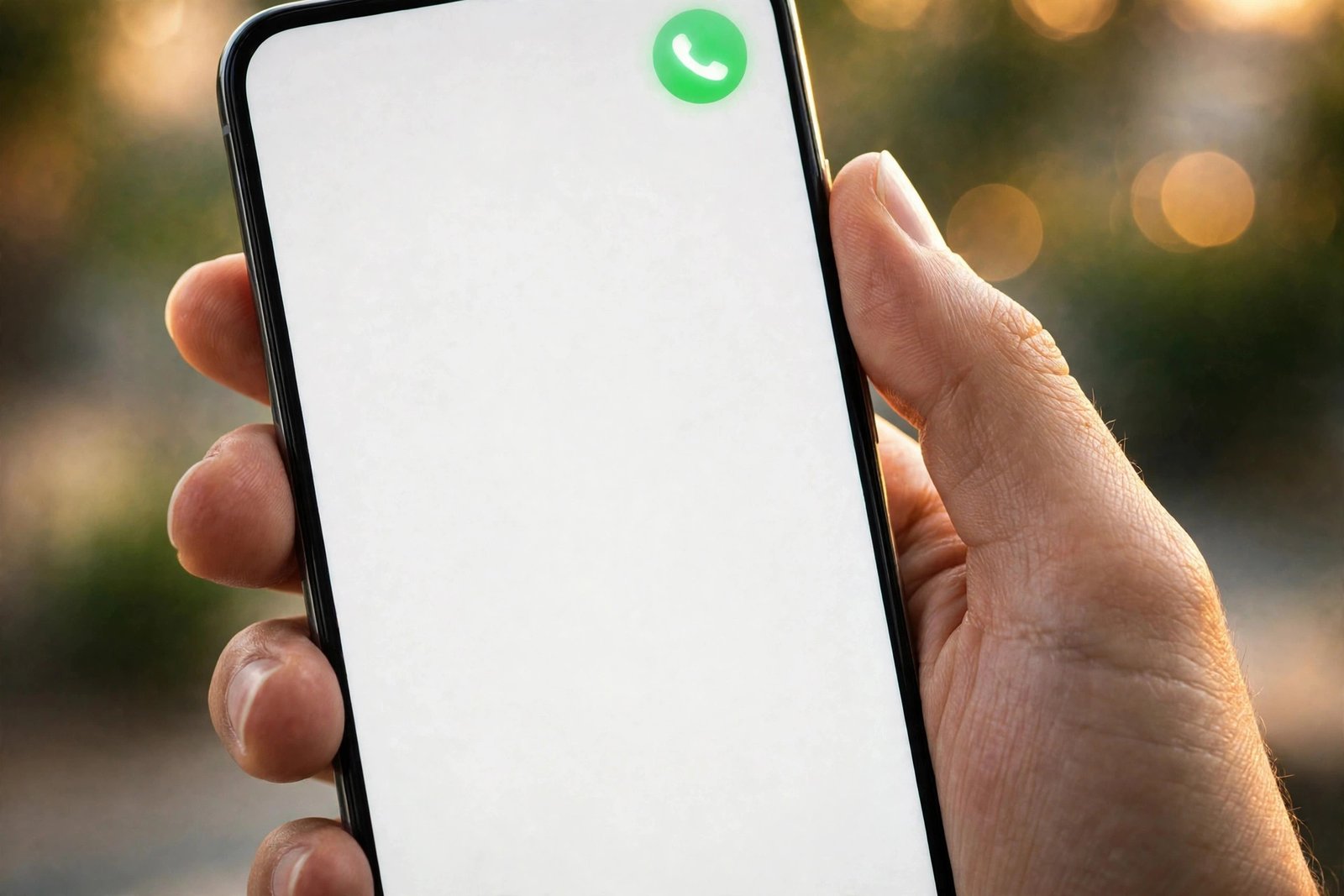
- Tap the phone icon. It sits in the top-right corner of the app and starts a live call. This is the whole entry point: one tap, no separate voice menu to hunt for.
- Pick a view. Choose voice only, the avatar beside the conversation, or full screen when you want to talk face to face. You can switch views during the call.
- Talk naturally. Speak as you would on a phone call. Ask a question, think out loud, dictate an idea, or ask Muse to plan something with you. Cut in whenever you want to change direction — you do not have to wait for a full answer.
- Change the voice if you want. Either describe the voice you want and let the system pick one, or browse the options in the avatar settings. Meta says there are hundreds of voices and you can change whenever you want.
- End the call. Say “Goodbye” or “Hang up”, or tap the end button. Both are from Meta’s help page. The conversation stays in your Muse history like any other chat, so you can pick it up in text later.
That is the full flow. If a guide tells you to tap a different button, open a hidden voice menu, or enable voice in a settings page Meta never named, it is guessing — Meta has not published a full menu-by-menu guide yet.
On iPhone
Update the Muse app to version 14.3 or later — its App Store release note is the only one that mentions the feature: “Try voice mode and expressive avatars, a new, natural way to interact with your Muse.” It requires iOS 18. If you see a headset icon in the top-right corner instead of a phone icon, you are on the older press-to-talk voice mode and the app has not updated; updating replaces it.
On Android
Same steps. The Play Store listing for Muse was updated on 4 November, but Google’s page does not show a version number, so if there is no phone icon, check for an update in the Play Store first. Android’s microphone-in-use indicator is the green dot.
On the web
Sign in at muse.ai, open a chat, and look for the same phone icon. The one layout difference Meta documents is the menu: it is bottom-left on the web and top-left on mobile. Your browser will ask for microphone permission the first time.
On Mac
The Mac app is a beta you download from Meta’s site, not the Mac App Store, and it publishes no release notes. Meta’s post names Mac as a voice platform and nothing else. If your copy has no phone icon, download the current build again from Meta’s site.
The three views, explained
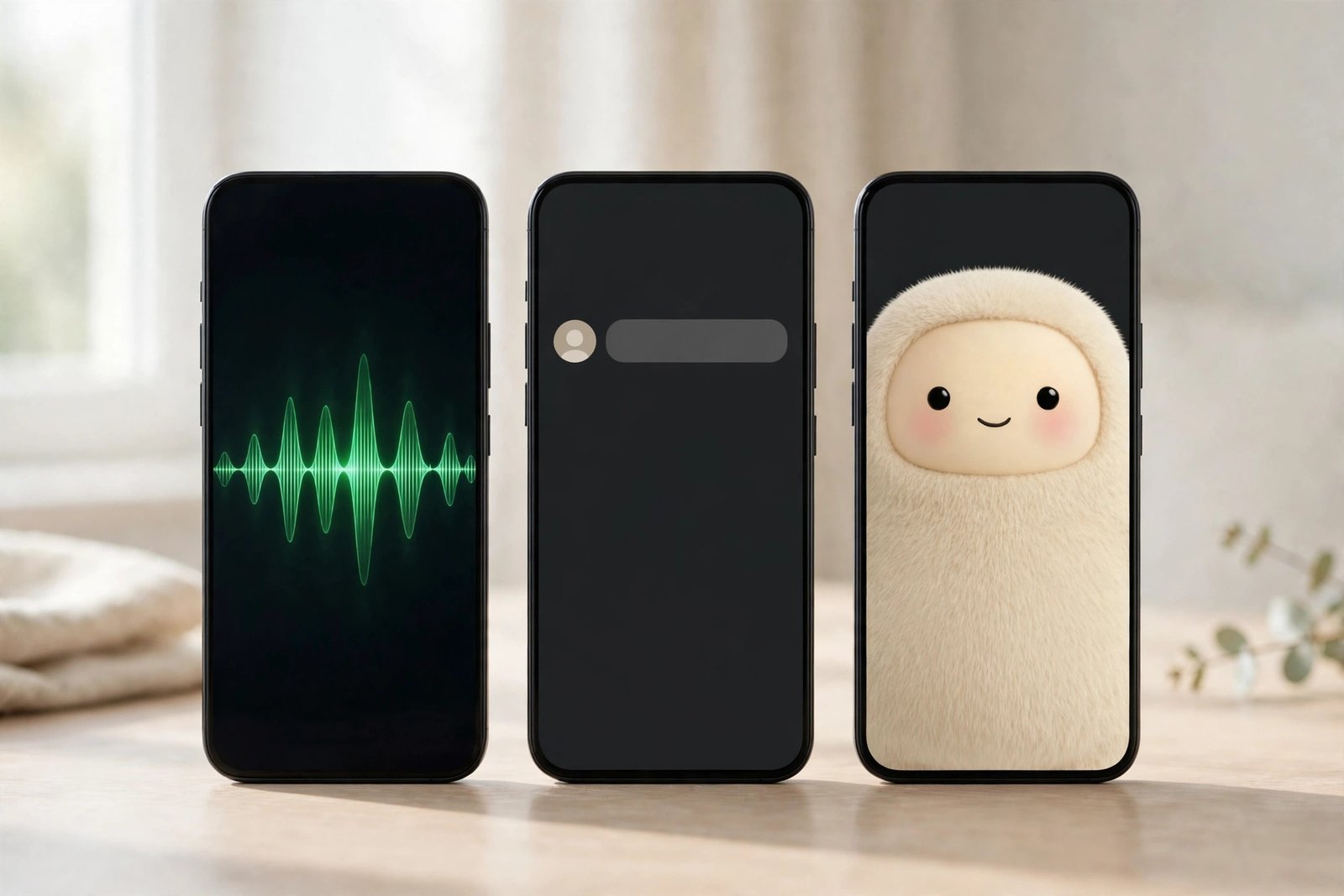
Voice only. No animated face appears. This is the lightest option: just talk and listen. Use it when you want hands-free help, when you are driving or walking, or when the avatar would be a distraction.
Avatar beside the chat. The avatar sits alongside your conversation, so you can see its reactions while the text of the conversation stays visible. This is the best default for most people: you get the face without losing the thread.
Full-screen avatar. The avatar fills the screen and you talk to it face to face. Use it when you want the conversation to feel like a call, not a chat window. Remember that full screen does not mean Muse can see you — it still only hears you.
You are not locked into the view you start with. Switch between them during a call and see which one fits the moment.
| View | What you see | Best for |
|---|---|---|
| Voice only | No avatar, just the conversation | Calls while walking, driving or cooking; long working sessions |
| Avatar beside the chat | A small animated face next to the text | Checking what Muse is doing while you talk |
| Full screen | A face-to-face video-style view | Rehearsals, interviews and conversations that feel personal |
How to change the voice and avatar
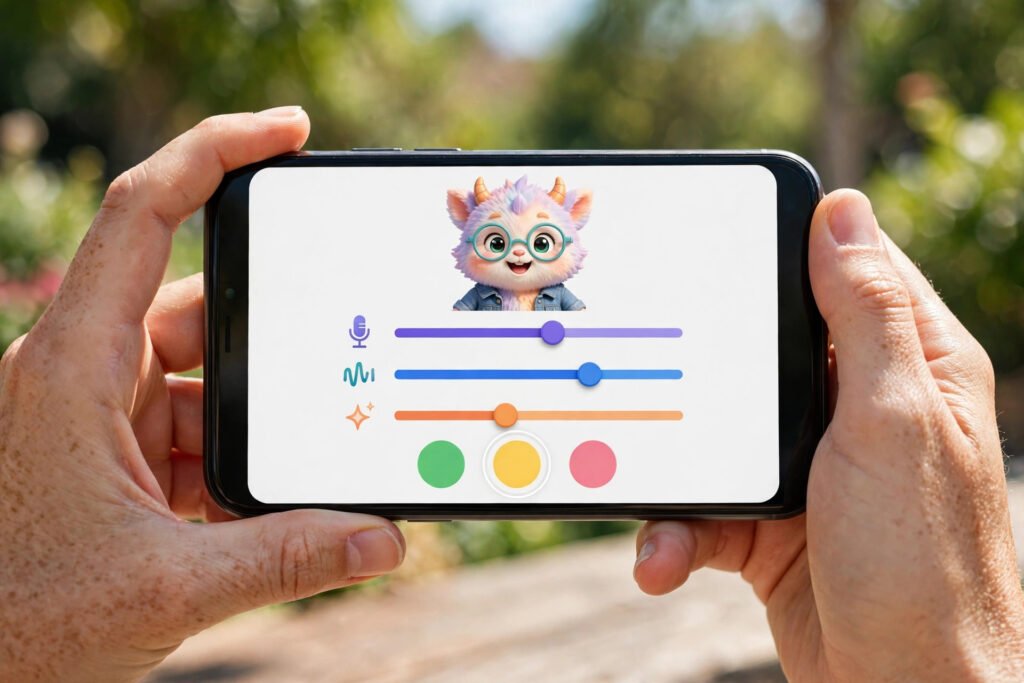
The default avatar is a cartoon character nicknamed Jolly, and the default voice is only a starting point. Meta built the customisation in two directions:
- Change how Muse sounds. Either ask the agent itself for the tone you want — for example, a calmer voice, a faster pace, or a more formal tone — or browse the voice options in the avatar settings and pick one directly. There are hundreds of voices, and you can change as often as you like. Meta illustrates the range with two examples: “the energy of a New Yorker” and “the flair of a pirate”.
- Change how Muse looks. You can restyle the avatar as a person, an animal, or something else entirely, and you can upload your own image as the basis for it. The avatar’s lips, expressions and gestures follow what it is saying, whatever form you choose. The Verge’s reviewer tested this on day one: he set his avatar to look like Mark Zuckerberg — and found he could not get his Muse’s voice to sound exactly like Zuckerberg.
A practical tip: pick the voice first and live with it for a few conversations before changing the look. The voice is what you will notice every minute; the face is what you will notice in the first minute.
Five things worth trying on your first call
Voice is best for jobs where thinking out loud beats typing — half-formed ideas, rehearsals and hands-free moments. Meta suggests the same three starting points in its announcement: developing an idea, planning a trip, and rehearsing a job interview or a presentation. Here are five spoken prompts to try first, written the way you would actually say them.
- Shape a half-baked idea. “I have a rough idea for a side business — a weekend food stall — but I don’t know where to start. Ask me questions until the idea has a shape.” Let Muse interview you instead of asking it for a finished plan.
- Plan a trip from three facts. “I want to see Kyoto, I like waking up somewhere quiet, and there’s one meal I want to plan the whole trip around. Build me a three-day plan and tell me what to book first.” This is Meta’s own example, and it plays to Muse’s strength: it can keep working on the booking research while you talk.
- Rehearse out loud. “Pretend you’re interviewing me for a marketing job. Ask me one question at a time, then tell me what I did well and what to fix.” Hearing your own answer, and answering in the moment, is the point — a typed rehearsal cannot do this.
- Work hands-free. Start a call while you cook or walk, and say: “While I’m busy, find me three options for a birthday gift under $50 and read me the best one.” Muse works in the background; you only need to listen.
- Make a quick decision. “I’m choosing between two laptops. Ask me three questions, then recommend one and tell me what I’d regret about the other.” Voice forces a short, honest answer — and the interruption button means you can stop Muse the moment it drifts.
One guardrail applies to all five: Muse still asks for approval before sensitive actions, such as purchases. Saying “book it” does not skip that step — and that is a feature, not a bug.

Voice or typing: when to talk, when to type
Talk when the idea is unfinished; type when the wording matters. Voice wins for brainstorming, rehearsals and anything you do with your hands busy. Typing wins for anything you need to keep word-for-word — a prompt you will reuse, a message you will send, or a set of instructions with exact figures. If you are not sure, start by talking and switch to text when the plan firms up; the conversation carries over.
| Job | Better by voice | Better by typing |
|---|---|---|
| Brainstorming an idea | Yes — thinking out loud helps | No |
| Rehearsing an interview or pitch | Yes — timing and tone matter | No |
| A prompt you will reuse | No | Yes — exact wording counts |
| Hands-free tasks (cooking, walking) | Yes | No |
| Detailed research with figures | Partly — ask, then read the text | Yes — for the numbers |
| Shopping with approval steps | Yes — talk, then approve in the app | Partly — for the final check |
What you can actually do with Muse Voice
Voice is not a different Muse — it is the same agent, reached by speaking. The things it is genuinely good for are the things where talking beats typing:
- Think out loud. Talk through a hook, an angle, an outline or a plan, and let Muse tighten it into a draft while you speak. Dictating an idea is faster than typing it, and interrupting is faster than re-prompting.
- Ask follow-ups mid-answer. If Muse is going in the wrong direction, cut in. You do not have to wait for a long answer to finish before correcting it.
- Hands-free help. Cook, drive, walk, or work with your hands while you ask questions, set out a plan, or get something explained step by step.
- Practice and rehearse. Read a pitch, a script or a presentation out loud and ask Muse to react, suggest a tighter version, or play the other side of the conversation.
What voice does not do is turn Muse into a presenter. The avatar is a conversational face you talk to, not a finished video you can publish to your channel. Generated avatar video also carries Meta’s invisible Video Seal watermark, which marks it as AI-generated.

What Muse Voice cannot do (yet)
Honest limits matter more than features in a new product, so here they are:
- It cannot see you. No camera, no screen sharing, no “show me this” — describe things in words.
- It is US-only. No date has been announced for other countries, including Pakistan. Do not trust guides that promise a launch date for your country — Meta has not given one.
- It is not in WhatsApp. A Muse chat inside WhatsApp does not have voice mode. The same goes for Instagram and Facebook chats.
- It is not on glasses or the Muse Charm wearable yet. Meta says both are coming, with no date. TechCrunch reports the Charm, a small wearable with a screen for the avatar, is planned before the end of the year. Note the difference: there is already a separate “Muse on your AI glasses (Beta)” that works today — you say “Hey Meta” or “Hey Muse” and get one answer at a time, and in the beta it cannot do music, calls, messages or navigation. The live, interruptible Realtime Voice call is what is “coming soon” to glasses and Charm.
- Some details are simply not stated. Meta has not said which languages voice supports, whether there is a time or usage limit on voice chats, or exactly which of Muse’s text abilities carry over to voice. This guide does not guess at those answers; the next guide in this series will update them when Meta states them.

What Muse Voice is not
Five things with “Muse” and “voice” in them get mixed up. Only the first is the feature Meta launched on 5 November.
| Thing | What it is | Where | Same as voice mode? |
|---|---|---|---|
| Muse voice mode (5 Nov) | Live, interruptible call with your agent; optional avatar; hundreds of styles | Muse app: mobile, web, Mac | This guide |
| Meta AI voice | The older assistant’s voice chat, with celebrity voices since 2024 | WhatsApp, Instagram, Messenger, Meta AI app | No; different product |
| Muse on glasses (Beta) | “Hey Muse” assistant, one request at a time; no music, calls or navigation yet | Meta AI glasses via the Meta AI app | No; Realtime Voice “coming soon” |
| Muse making phone calls | Muse dials a business and talks to a human for you | Muse app, text request | No |
| Muse Voice Transcribe | Meta’s speech-to-text model for developers and dictation | API, Meta AI for Mac, Muse Code | No; dictation, not conversation |
| Muse Charm | Keychain device with “the whole real-time voice and avatar stack” | Expected to ship in December (Android Authority); no price | Will be; “coming soon” |
Settings to check before your first long call
Three settings matter, using the labels on Meta’s own help pages. The menu is top-left on mobile and bottom-left on the web.
Voice and Avatar is where the help page sends you for permissions: “You control background listening” and “You can review and change these permissions at any time in Settings › Voice and Avatar.” If you don’t want the call to continue after you leave the app, this is the place. When background listening is on, you can keep talking while you use other apps, and your phone shows the microphone indicator the whole time — the orange dot on iPhone, the green dot on Android.
Data controls › “Help improve our AI models” is the one most people will want to look at now that they’re talking instead of typing. Meta’s data page says stored interactions “can include text, voice, photos, things you create together” and that “you decide whether we can use your interactions with Muse to train and improve our AI models”. Turning it off stops the use and “applies to previous interactions too”. AI training on your data is on by default — check this setting once, before you start talking about anything personal. There is no separate voice-transcript setting, retention period for audio, or way to delete voice alone that Meta has described; the controls you have are the chat-level ones: delete a thread, or Settings › Data Controls › Reset Muse, which “cannot be undone”. And read Meta’s own caveat before relying on deletion: “After you delete something from Muse, Muse may still remember information it learned from what you deleted.”
Usage is where plans live: Free with a weekly limit, Power at $20 a month for 500 million tokens a week, Maximum at $100 a month for 3 billion tokens a week (per top5apps.ai’s reading of Meta’s subscriptions page). Meta’s subscriptions page does not mention voice at all — neither as included nor as metered — so assume a call draws from the same weekly pool until Meta says otherwise.
How to turn Muse Voice off
There is no single “off” switch for voice. Work from lightest to strongest:
- Hide the avatar. Pick the voice-only view so no animated face appears.
- Block the microphone. On iPhone, go to Settings, then Muse, and turn off Microphone. On Android, go to Settings, then Apps, then Muse, then Permissions. Without the microphone, voice cannot start.
- Do not tap the phone icon. Voice only starts when you tap it — it does not start by itself.
How much does Muse Voice cost?
Muse is free to start, with an in-app meter that warns you when free usage runs out. TechCrunch reported a $20-a-month Power plan and a $100-a-month Maximum plan at launch — that pricing is reported, not confirmed in Meta’s own announcement, so treat it as reported until Meta confirms it. Meta’s announcement says nothing about cost, and no source names voice as included in the free tier by name, or as carrying a separate voice limit. If a guide states a voice price as fact, check whether it is quoting Meta or quoting a report.
Troubleshooting
No phone icon. Update the app (iPhone 14.3 or later); on Android and Mac, reinstall from the store or Meta’s site. If it is still missing, you may be outside the US, the rollout may not have reached your account, or the account is under 18.
A headset icon instead. That is the previous voice mode, which Meta’s help page still documents (“tap the headset before speaking a prompt”). It works, but it is press-to-talk, not the live call. Updating replaces it.
It can’t hear you. Check the OS microphone permission for Muse (iOS Settings › Privacy › Microphone; Android app permissions), then the app’s Settings › Voice and Avatar.
It stopped when you switched apps. Background listening is a permission in Voice and Avatar; if it’s off, the call pauses when you leave. When it’s on, your phone shows the mic indicator the whole time, by design.
It won’t hang up. Say “Goodbye” or “Hang up”, or tap the end button. Meta lists both.
If you are outside the US, the icon will not appear at all — that is the US-only rollout, not a fault on your phone. The next article in this series covers each case in full, including what to check and what not to try.
Frequently asked questions
Is Muse Voice free?
Muse is free to start, with paid plans reported at $20 and $100 a month. Meta has not said by name whether voice is included in the free tier.
Does Muse Voice work on the web?
Yes — on mobile, on the web at muse.ai, and on Mac, in the US.
Can I use Muse Voice in WhatsApp?
No. Voice mode runs in the Muse app and on muse.ai only, not inside WhatsApp, Instagram or Facebook chats.
Can Muse see me during a video chat?
No. The avatar hears you and reacts to what you say. It does not use your camera.
When will Muse Voice come to my country?
Meta has not announced a date for any country outside the US. There is no confirmed date for Pakistan, Canada, Mexico, Japan or Singapore.
What is the default avatar called?
Jolly — a cartoon character. You can restyle it or upload your own image.
Does the avatar work on AI glasses?
Not yet. Meta says voice on AI glasses and on the Muse Charm wearable are coming later, with no date given. A separate glasses beta (“Hey Muse”, one request at a time) already exists, but that is not the live Realtime Voice call.
I see a headset icon, not a phone icon. Is that voice mode?
No. The headset icon is the older press-to-talk voice mode. Update the app to version 14.3 or later on iPhone (or reinstall on Android/Mac) to get the phone icon for the live call.
The bottom line
Muse Voice is simple on purpose: open Muse, tap the phone icon, talk. The avatar and the hundreds of voices are the headline, but the real change is smaller — you can interrupt, think out loud, and keep a conversation moving the way a real conversation moves, while Muse keeps working on your task in the background. Typing forces you to write a good prompt before you know what you want; talking lets Muse do the clarifying work with you, in real time. That is the real shift here — the avatar is the visible part, but the background working is the useful part.
The catch is geography: for now it is US-only, it cannot see you, and it does not live in WhatsApp. If you are in the US, try voice-only first, then the avatar beside the chat, and only then full screen. If you are outside the US, the honest answer is to wait for Meta’s rollout — and to check the next guide here when it lands, rather than trusting a guide that invents a date.